How to Convert a PNG Logo to SVG for Your Product Launch
Your launch logo needs an SVG. Here is how to convert a PNG to a clean, scalable vector, when tracing works, and when it makes the logo worse.
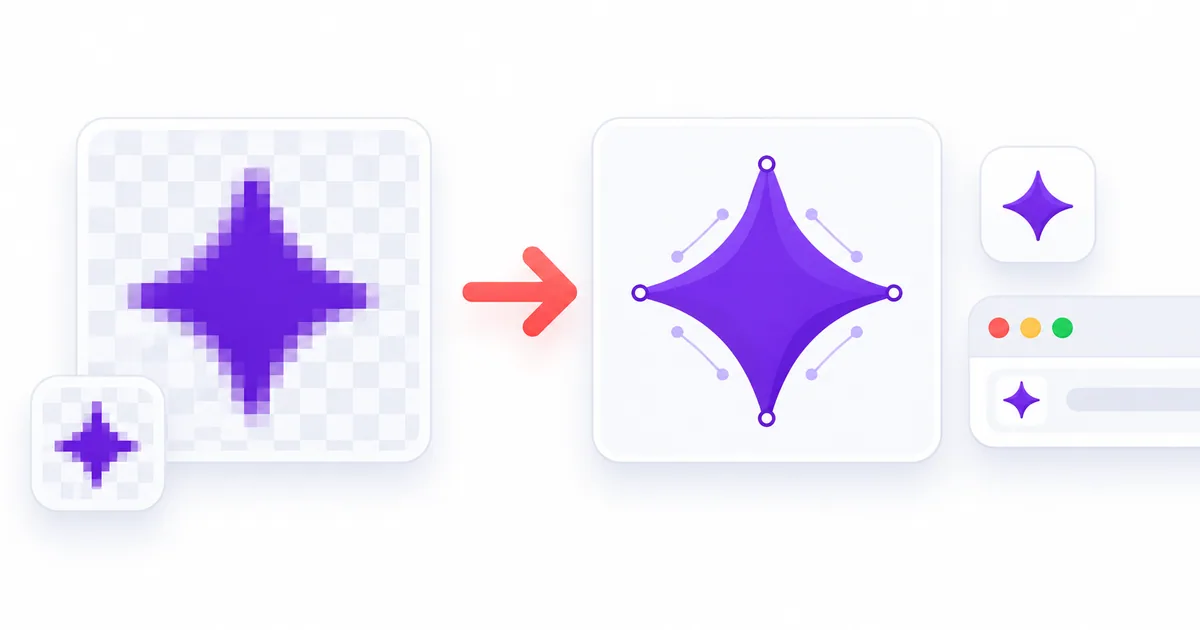
Launch day is mostly a design-asset problem nobody warns you about.
By the time your product goes live you need a logo at a dozen sizes: the header on your landing page, a favicon, the square thumbnail on a launch platform, a dark-mode version, an OG image for Twitter, and something you can hand a designer without them asking "do you have this in vector?"
Most makers have exactly one file at that point: a PNG someone exported two months ago. It looks fine at 240 pixels and turns into a blurry smear at 1,200.
Here is how to get from that PNG to a proper SVG — and, just as importantly, when you should not bother.
Why your launch logo needs an SVG version
An SVG is not an image file in the usual sense. It is a description of shapes: paths, fills, and coordinates. Browsers redraw it at whatever size it is displayed at, which is why it stays sharp on a 6K monitor and on a print proof.
For a launch, that buys you four concrete things:
- One file replaces a folder of PNGs. No more
logo@2x.png,logo@3x.png,logo-dark@2x.png. - Favicon to billboard from the same source, without re-exporting.
- You can change the color with a text edit. Open the SVG, find
fill="#1a1a1a", change it. A PNG requires a design tool you may not have. - It is what designers and marketplaces expect. If you submit a logo to a press kit or a partner, "SVG, please" is the standard request.
One honest caveat: an SVG is not automatically smaller than a PNG. For a simple logo it usually is, and it compresses well with gzip. For a complex illustration with hundreds of paths, a well-optimized PNG or WebP can be lighter. The reason to use SVG for a logo is scalability and editability, not file size alone.
Two ways to get an SVG from a PNG, and how they differ
There are only two real methods, and they are not interchangeable.
1. Tracing (also called vectorization). Software looks at your PNG, finds boundaries between areas of similar color, and draws paths around them. This is what free converters, Inkscape's Trace Bitmap, Adobe Illustrator's Image Trace, and browser-based tools do.
Tracing works best when the source already behaves like a graphic: flat colors, hard edges, no gradients, no noise.
2. Redrawing. A human (or a designer) rebuilds the logo as clean paths. Slower, costs money, and produces the best result — because a traced logo carries every artifact of the PNG, while a redrawn one is exact.
For a startup logo, tracing is usually good enough if the source is clean. That is the whole trick, and it is what the next section is about.
Step 1: Check whether your PNG is even traceable
Before opening any tool, look at the source file. Tracing does not add information — it only re-describes what is already there. If the PNG is bad, the SVG will be bad in exactly the same way, permanently.
Your PNG is a good candidate if:
- It has flat colors — two to eight distinct colors, no soft gradients.
- It has hard edges — no drop shadows, no glow, no anti-aliased haze.
- It is large enough — roughly 800 pixels on the long edge or more. A 200 px logo has already lost the edge detail the tracer needs.
- It has a clean or transparent background.
- Lettering is legible — if the wordmark is fuzzy in the PNG, it will be fuzzy in the SVG.
Stop and get a better source if it has:
- A gradient logo (traced gradients become banded stripes),
- Photographic elements or a photo-based background,
- Heavy JPEG-style compression artifacts (messy gray squares around the edges),
- Tiny text below about 12 px,
- A screenshot taken from another website.
If your logo has a gradient, tracing will almost certainly disappoint you. Redraw it, or rebuild it as a flat version for the SVG and keep the gradient PNG for hero images.
Step 2: Convert it, preferably in the browser
You have three practical options.
Free online converter. Fast, no install. Upload, convert, download. Two things to check before you trust one: does it watermark the output, and does it upload your file to a server? For a pre-launch logo this matters — your logo is not public yet.
Desktop software. Inkscape (free) and Illustrator (paid) both have a trace function with controls for color count, smoothing, and speckle suppression. More control, more fiddling.
Browser-based conversion. Some tools run the trace locally with WebAssembly, so the file never leaves your machine and there is no account, no watermark, and no daily limit. For a launch logo — something you would rather not upload to an unknown server before it is public — this is the option worth choosing. Vectorize Image does the conversion in your browser, free, and gives you a color palette to clean up before downloading.
Whichever you pick, use the settings in the next step.
Step 3: Tune three settings, ignore the rest
Every tracer exposes a wall of sliders. Only three matter for a logo:
- Color count. Set it to the number of colors actually in your logo, plus one. A two-color logo traced at 16 colors produces 14 colors of noise that you will spend an hour deleting.
- Smoothing / corner threshold. High smoothing turns your sharp corners into blobs. Low smoothing leaves a jittery edge where the PNG was pixelated. Look at the corners of your mark and split the difference.
- Speckle / noise filter. Set it high enough that isolated 1-pixel dots disappear. This is the single setting that most often turns a messy trace into a usable one.
Then look at the result at 100% zoom, not at thumbnail size. Thumbnails hide everything.
Step 4: Clean up and download
A good trace usually still has leftovers: a handful of stray shapes, a duplicated path, a background rectangle you do not want.
If your tool has a color palette or layer panel, remove the junk there — hide the stray colors, delete the empty shapes. Then download.
Name the file properly. logo.svg, not logo-final-final-v3.svg. You will need it again on launch day and you will not remember.
Step 5: Put it on your site correctly
An SVG on a web page needs two attributes that get forgotten constantly:
<img src="/logo.svg" width="160" height="40" alt="YourProduct" />

<!-- or inline, if you want to control the fill color with CSS -->
<svg viewBox="0 0 160 40" role="img" aria-label="YourProduct">
  <path d="..." fill="currentColor" />
</svg>- Always set
widthandheight(or CSS dimensions). An SVG with only aviewBoxhas no intrinsic size and will collapse or blow up depending on the browser. - Keep the
viewBox. It is what makes scaling work. - Inline the SVG if you want
currentColor, so the logo turns white in dark mode with one CSS rule instead of a second file. - Add
aria-label— inline SVGs are invisible to screen readers without it. - Ship a favicon too, and note that a favicon needs its own sizing rules (our favicon guide covers the exact formats).
Step 6: A pre-launch asset checklist
Before you hit publish, you want these files on disk:
| Asset | Format | Notes |
|---|---|---|
| Primary logo | SVG | Transparent background, flat colors |
| Logo for dark backgrounds | SVG | Single-color currentColor version is easiest |
| Locked-up wordmark | SVG | Logo + product name, fixed spacing |
| Favicon | SVG + .ico fallback | Keep it legible at 16 px |
| Social / OG image | PNG, 1200×630 | Raster is correct here — social platforms do not render SVG |
| Launch thumbnail | PNG, square | Most launch platforms want raster |
| Press kit | Folder with SVG + PNG | Name files clearly, include a short brand note |
That is it. Seven files, one afternoon, and you never think about logo sizes again.
When you should not convert your PNG to SVG
Two cases where tracing is the wrong move.
Your logo is a photo or a detailed illustration. Tracing a photograph produces a posterized, painted-over imitation. It is a different aesthetic, not a cleaner version of the original. If you need vector art based on a photo, that is a redraw job, not a conversion job.
Your PNG is too small or too compressed. No tool can recover edge detail that was never in the file. A 200 px logo with JPEG artifacts will trace into a lumpy, wobbly shape, and you will spend more time cleaning it than a designer would spend redrawing it.
If either applies, the honest answer is: rebuild it as a flat two-color mark. Launches rarely need more than that, and a flat mark survives every conversion, every favicon size, and every print vendor.
Next step: if your logo is a flat mark and you have the PNG, convert it in your browser — free, no account, and the file never leaves your machine. Then run through the checklist above and get back to the part of launch day that actually matters.