The Complete Favicon Guide: Sizes, Formats & Best Practices
Everything you need to ship a favicon that works everywhere: the exact sizes and formats to use, the HTML to add, common mistakes to avoid, and free tools to generate and audit your favicon.
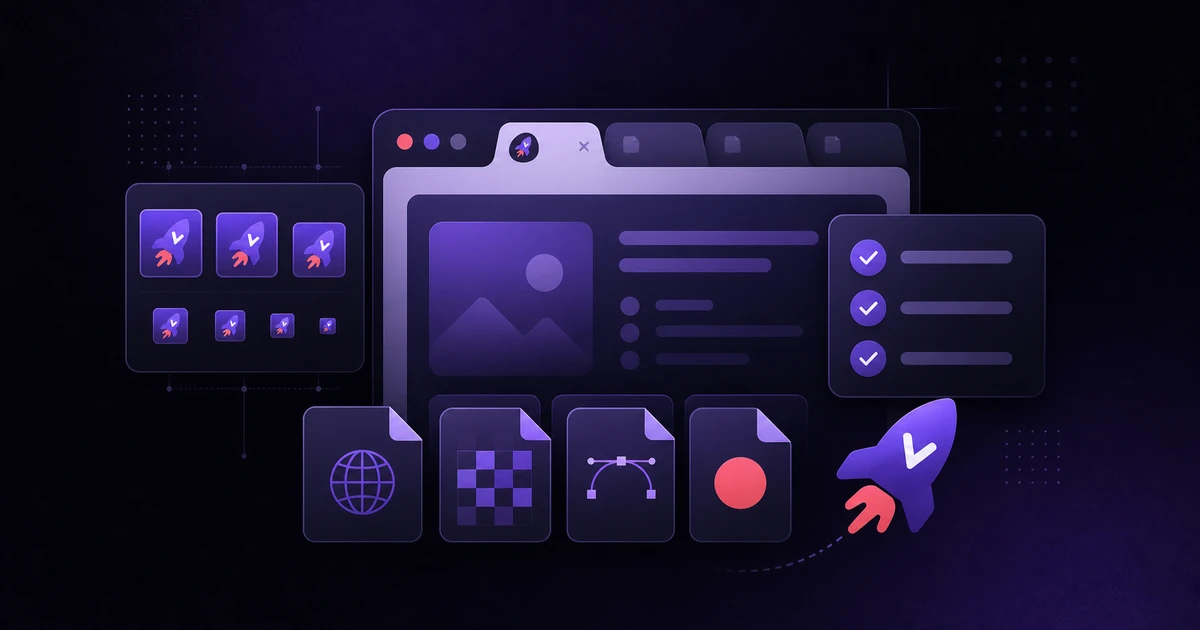
A favicon is the tiny icon that shows up in browser tabs, bookmarks, and history — the smallest piece of your brand, and one of the most overlooked. Get it right and your site looks finished and trustworthy. Skip it and you get the generic "blank page" icon that screams unfinished side project.
This guide skips the fluff and gives you exactly what you need: the right sizes and formats, the HTML to drop in, the mistakes that quietly break your icon, and free tools to generate and audit your favicon in minutes.
What Is a Favicon?
"Favicon" is short for favorite icon — a small graphic that represents your website. It appears in:
- Browser tabs (the main place people see it)
- Bookmarks and reading lists
- History and the address bar suggestions
- Mobile home screens, when someone saves your site as an app icon
- Google's mobile search results, next to your listing
It's small, but it does real work: it helps users find your tab among 20 others, and it signals that someone cared about the details.
Why Favicons Matter for Branding
A favicon is visual shorthand for your brand. When it's consistent with your logo and colors, it builds the kind of low-effort recognition that makes people trust and remember a site.
Three concrete things a good favicon buys you:
- Recognition — users spot your tab instantly instead of hunting for it.
- Credibility — a real icon (not the default globe) reads as professional and intentional.
- Consistency — it ties your tabs, bookmarks, and mobile shortcuts into one cohesive identity.
Favicon Sizes & Formats You Actually Need
You don't need dozens of files. You need a small, well-chosen set that covers desktop browsers, mobile home screens, and PWAs.
| Size | Format | Used for |
|---|---|---|
| 16×16 | .ico / .png | Browser tabs, bookmarks |
| 32×32 | .ico / .png | Desktop shortcuts, retina tabs |
| 48×48 | .png | Windows site tiles |
| 180×180 | .png | Apple touch icon (iOS home screen) |
| 192×192 | .png | Android home screen / PWA |
| 512×512 | .png | PWA splash & high-res displays |
Format quick guide:
.ico— the classic. One file can bundle 16×16 and 32×32, and every browser understands it. Still the safest default for the core favicon..png— better color and transparency; the right choice for the larger touch/PWA icons..svg— scalable and tiny, and modern browsers support it. Great as a progressive enhancement, but always ship.ico/.pngfallbacks for older clients and platforms that ignore SVG.
Rule of thumb: ship
.ico(16/32) + a 180×180 Apple touch icon + 192×192 and 512×512 PNGs, and you've covered ~99% of real-world cases.
How to Create a Favicon in Minutes
You don't need Photoshop. If you don't already have a designed icon — which is most indie makers at launch — the fastest path is a text-based generator that turns your brand initials into a clean icon and exports every size and format for you.
That's exactly what the free LaunchVault Favicon Generator does:
- Type one or two characters (your brand initials) and pick colors.
- Preview it at real browser sizes so you know it's legible before you ship.
- Download the complete package —
.ico, 16×16/32×32 PNGs, the Apple touch icon, Android Chrome, and a web app manifest. Everything is generated locally in your browser, so your assets never get uploaded. - Unzip the files into your project's root or
public/folder.
Already have a logo? Keep the source artwork square and simple — small icons reward bold shapes over fine detail (more on that below) — then export it to the sizes in the table above and wire it up with the HTML in the next section.
Adding Your Favicon to Your Site
Put the favicon files in your site's root (or public/) directory, then reference them in the <head> of your HTML:
<link rel="icon" href="/favicon.ico" sizes="any" />
<link rel="icon" type="image/png" sizes="32x32" href="/favicon-32x32.png" />
<link rel="icon" type="image/png" sizes="16x16" href="/favicon-16x16.png" />
<link rel="apple-touch-icon" sizes="180x180" href="/apple-touch-icon.png" />
<link rel="manifest" href="/site.webmanifest" />
The site.webmanifest ties in your 192×192 and 512×512 icons for Android and PWA installs:
{
  "icons": [
    { "src": "/android-chrome-192x192.png", "sizes": "192x192", "type": "image/png" },
    { "src": "/android-chrome-512x512.png", "sizes": "512x512", "type": "image/png" }
  ]
}
After deploying, hard-refresh (browsers cache favicons aggressively) and confirm it shows everywhere.
Favicon Best Practices
- Keep it simple. At 16×16, a full logo turns to mush. Use a single letter, monogram, or the boldest element of your mark.
- Use strong contrast. Your icon sits on both light and dark browser chrome — make sure it reads on both.
- Match your brand. Reuse your logo's primary color and shape so the favicon feels like part of the family.
- Design square, test small. Preview at actual size before shipping; what looks great at 512×512 can be illegible at 16×16.
- Provide multiple sizes. Don't rely on the browser to downscale one big image — ship the real sizes.
Common Favicon Mistakes (and How to Catch Them)
The usual ways favicons silently break:
- Only shipping a 16×16 file — mobile home screens and PWAs then fall back to a blurry or blank icon.
- Forgetting the Apple touch icon — iOS users who "Add to Home Screen" get a screenshot instead of your logo.
- Overly detailed artwork that blurs at small sizes.
- A missing or misconfigured manifest, so Android/PWA installs have no icon.
- Wrong path or stale cache, so the icon 404s or never updates.
The fastest way to verify all of this is to scan your live site. The free LaunchVault Favicon Checker inspects a URL and tells you which favicon files and tags are present, which sizes are missing, and what to fix — so you're not guessing across browsers and devices.
Does a Favicon Help SEO?
Let's be accurate here, because there's a lot of hype:
- A favicon is not a ranking factor. Adding one won't move your position in search results.
- It does appear next to your listing in Google's mobile search results. A clean, recognizable icon there can make your result stand out and feel more trustworthy, which may help click-through — but treat that as a branding benefit, not an SEO trick.
- For Google to show it, your favicon must be crawlable, a square multiple of 48×48 (e.g. 48×48, 96×96, 144×144), and referenced with a
rel="icon"link.
Bottom line: ship a favicon for branding and UX. The search-results appearance is a nice bonus, not the reason to do it.
Favicon Launch Checklist
Before you call it done:
-
favicon.icowith 16×16 and 32×32 in the site root - 180×180
apple-touch-icon.png - 192×192 and 512×512 PNGs for Android/PWA
- A
site.webmanifestreferencing the PNG icons - All
<link rel="icon">tags in<head>with correct paths - Verified live with the Favicon Checker
- Hard-refreshed and confirmed in a browser tab, a bookmark, and a phone
Small Icon, Big Impact
A favicon takes ten minutes and makes your site look genuinely finished. Generate the full set with the free LaunchVault Favicon Generator, drop the files in, add the <head> tags, then confirm everything with the Favicon Checker. That's the whole job — and it's one of the highest return-on-effort details you can ship.