Boost Sponsor: Placements, Campaign Statistics, and Your PDF Report
A practical guide to LaunchVault's $29 Boost Sponsor: seven days of placement, every covered page type, campaign statistics, a sample PDF, and how to book.
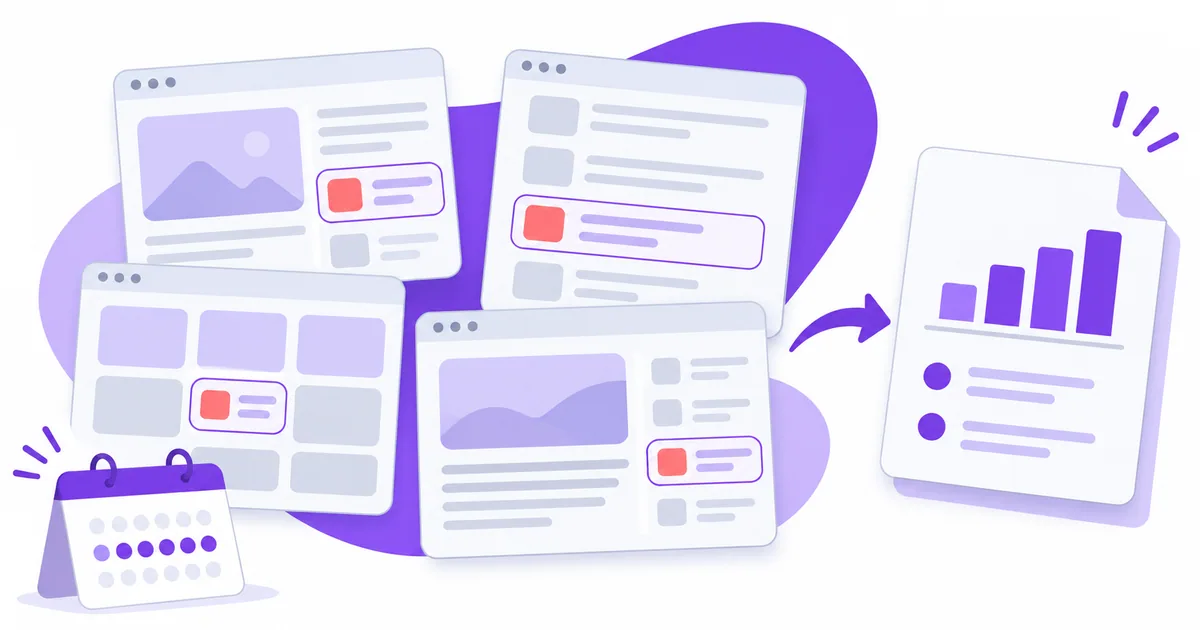
Boost Sponsor costs $29 USD for seven consecutive days of sponsored placement on selected LaunchVault pages. It is a separate purchase from a product launch: you can promote a new product or give an existing product another period of visibility.
This guide shows what you receive, where the card appears, how the statistics are counted, and what the final report looks like. The placement screenshots use a clearly labeled demonstration card. The Dashboard screenshots and report use invented example figures to explain the interface and format; none is a customer result or a traffic forecast.
What your purchase includes
| Included | What that means |
|---|---|
| Seven days of placement | The period starts when payment is confirmed and your card goes live. |
| Your product card | Your logo, product name, one-line tagline, and a link to your chosen landing page. Cards carry a Sponsored label. |
| Desktop and mobile coverage | The seven page types listed below have responsive placements. Teardown articles use a bottom floating strip. |
| Campaign statistics | Viewable impressions, clicks, click-through rate, daily performance, and a breakdown by page type. |
| A final PDF | Download a fixed report after the campaign ends and its five-minute settlement window has elapsed. |
| Time added for platform outages | A verified platform outage can be compensated by extending the campaign; the revised end time appears in your campaign details. |
The price is a one-time payment, rather than a recurring subscription. There is currently no fixed limit on the number of simultaneous sponsors. All active campaigns share the covered placements, alongside any existing sponsor cards shown there.
Every active card is included in the relevant placement. Their order is shuffled on each page visit and stays fixed during that visit. This spreads opportunities to occupy each position, but does not make every card's exposure equal: readers may not reach the bottom of a stack or scroll through the entire floating strip.
Boost Sponsor does not include a Launch plan, a product review article, or a newsletter feature. It does not promise a particular number of impressions, clicks, sign-ups, sales, search rankings, or backlinks. The purchased service is the placement and duration, with a report of the activity actually observed.
Book Boost Sponsor
$29 for seven days. Add your logo, tagline and destination link.
Where your card appears
The campaign covers these seven page types. A page type represents its valid individual pages, rather than a single URL. On a small screen, swipe the table sideways to see all four columns.
| Page type | Example | Desktop placement | Mobile placement |
|---|---|---|---|
| Homepage | LaunchVault | Product-discovery sidebar | In the product-discovery content flow |
| Trending | Trending | Discovery sidebar | Within the launch lists |
| Product details | A page under /projects/ | Product sidebar | Within the product page |
| Product category details | Artificial Intelligence | Below Browse Categories, above Quick Access | In the main category content |
| Blog articles | An individual page under /blog/ | Article sidebar | Before the article body |
| Indie tool details | GitHub | Tool sidebar | Within the tool page |
| Product teardown details | SimpleDraw teardown | Bottom floating strip | Bottom floating strip with an internally scrollable card area |
The Free Tools utilities, collection pages, comparison pages, directory index pages, and the Teardowns index are outside this Boost Sponsor coverage. A sponsor component or an older promotional card on a different page does not make that page part of this purchase. Individual placements may be below the first screen; their presence is not a promise of an above-the-fold impression.
Select any screenshot to open the full-size image.
1. Homepage
On desktop, sponsor cards sit in the homepage's discovery sidebar. On mobile, they appear in the main product-discovery flow. The card links directly to the landing page you supplied, independently of your LaunchVault product listing.
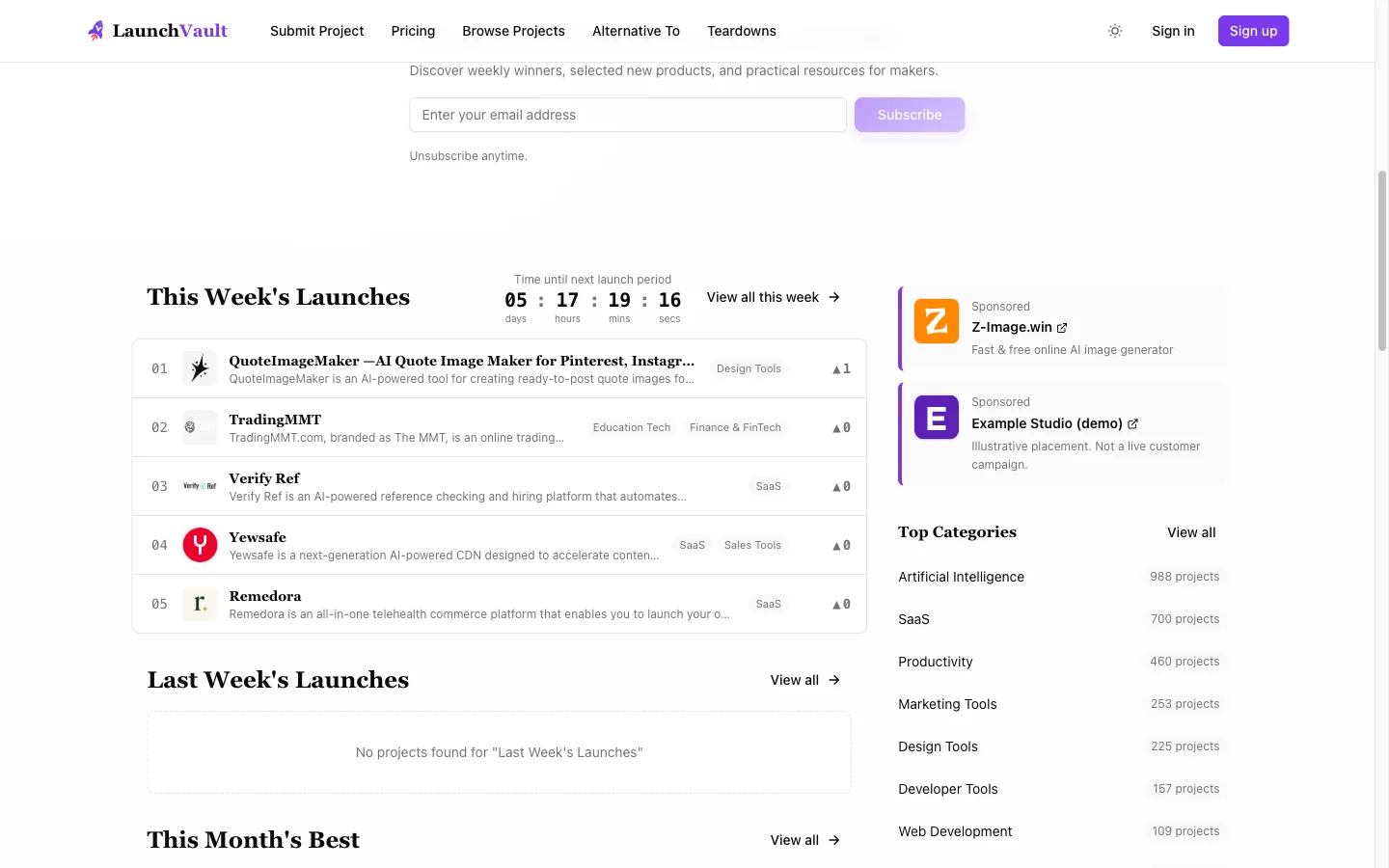 Homepage placement. Example Studio is a demonstration card, not a paying customer.
2. Trending
The Trending page brings together launch lists and winners. Desktop sponsor cards use its sidebar; the mobile placement sits within the page's content. A sponsored card is separate from the ranking and does not buy votes or a position in the launch results.
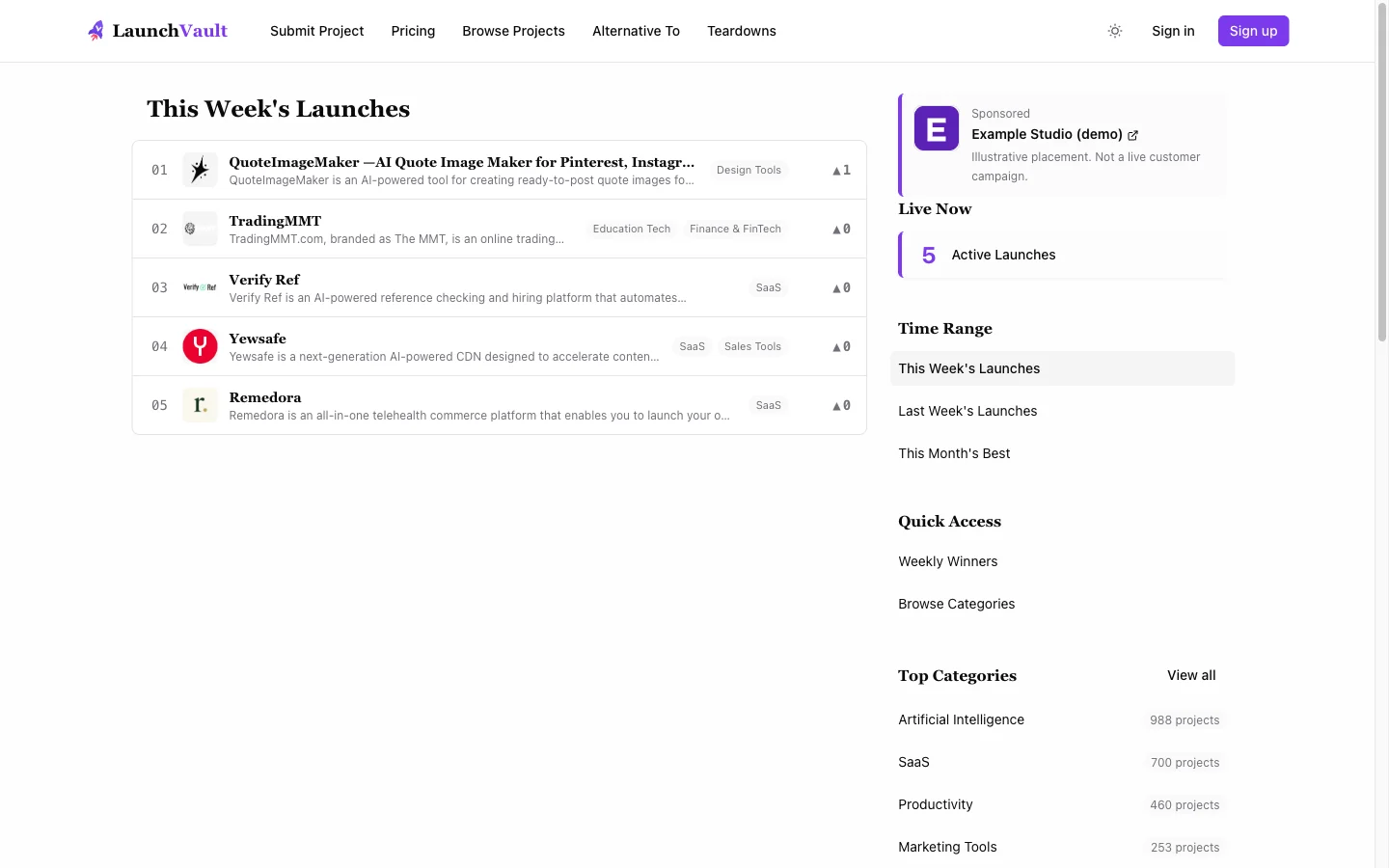 Trending placement. Sponsorship does not change launch rankings.
3. Product details
Cards appear beside individual product details on desktop and within those pages on mobile. This reaches readers who are already examining a product's description, features, and links. Buying Boost Sponsor does not create a new product listing or attach the campaign to one particular host product.
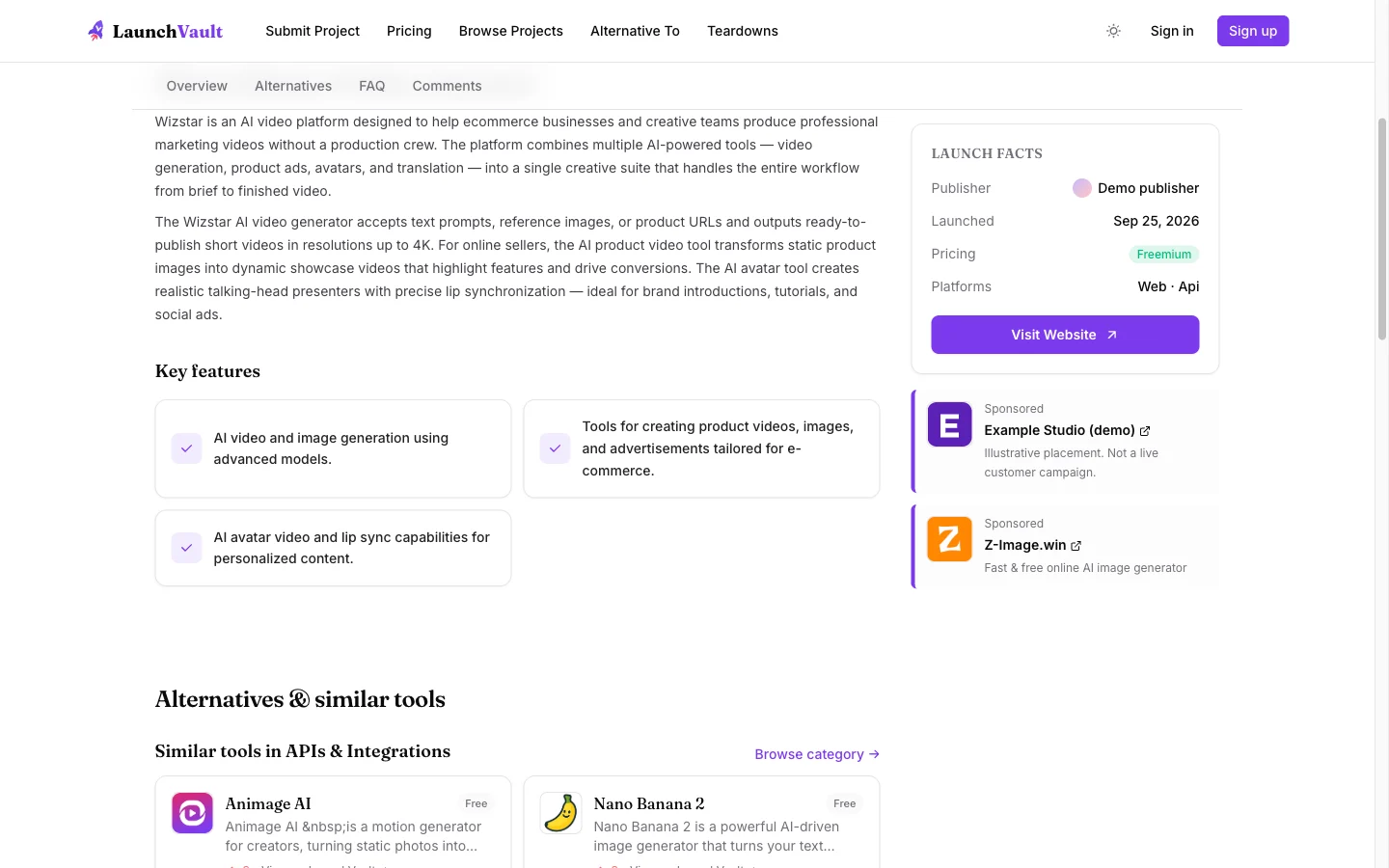 Product detail placement, using a demonstration sponsor.
4. Product category details
Category pages group products by interest, such as Artificial Intelligence or Developer Tools. On desktop, the sponsor area is below Browse Categories and above Quick Access. On mobile, it moves into the category page's main content.
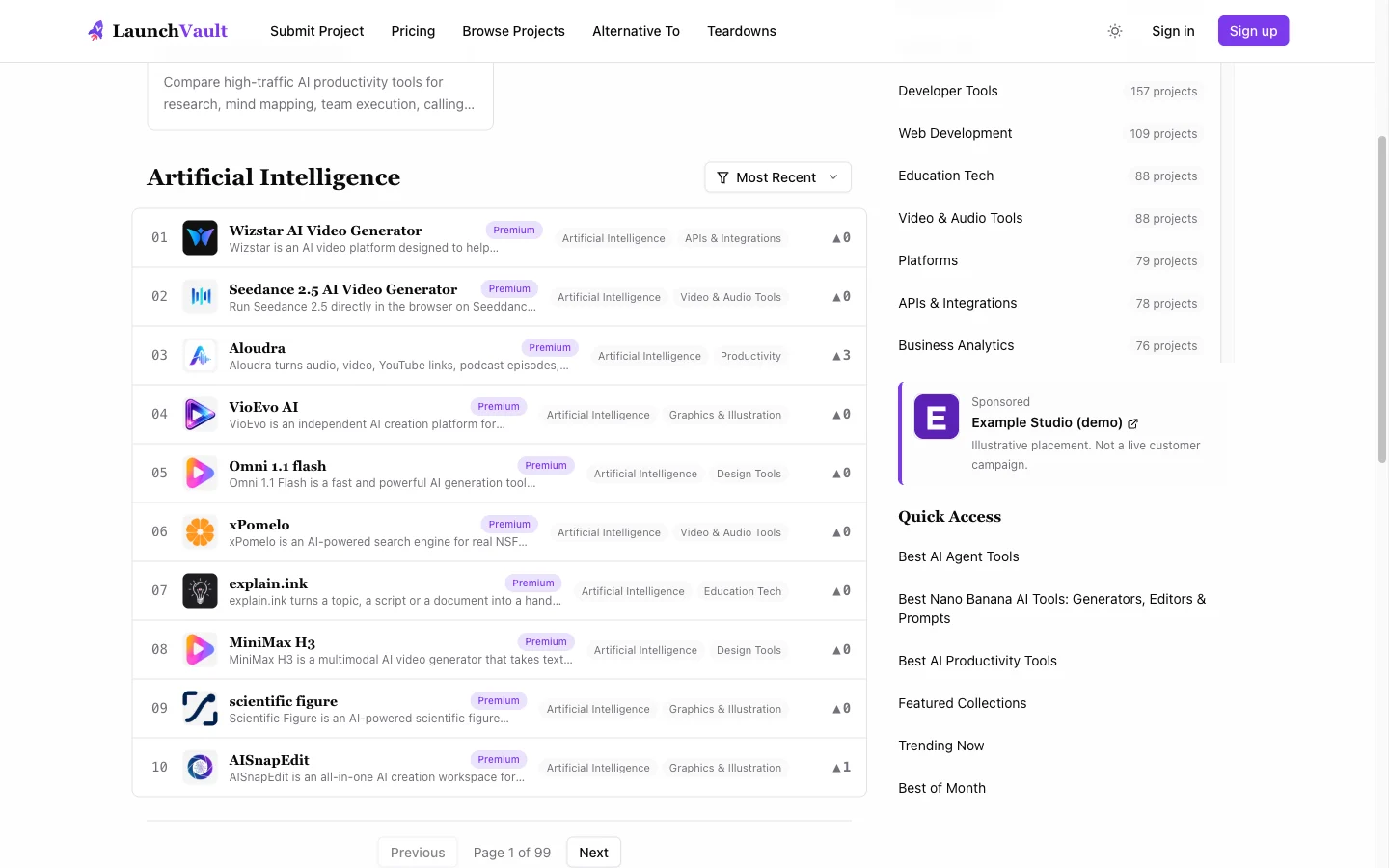 Category detail placement. The sponsor is separate from the product list and its sorting.
5. Blog articles
On desktop, sponsor cards appear in the article sidebar. On mobile, they appear before the article body. The Sponsored label distinguishes the promotion from the article's editorial content; buying this placement does not purchase favorable coverage.
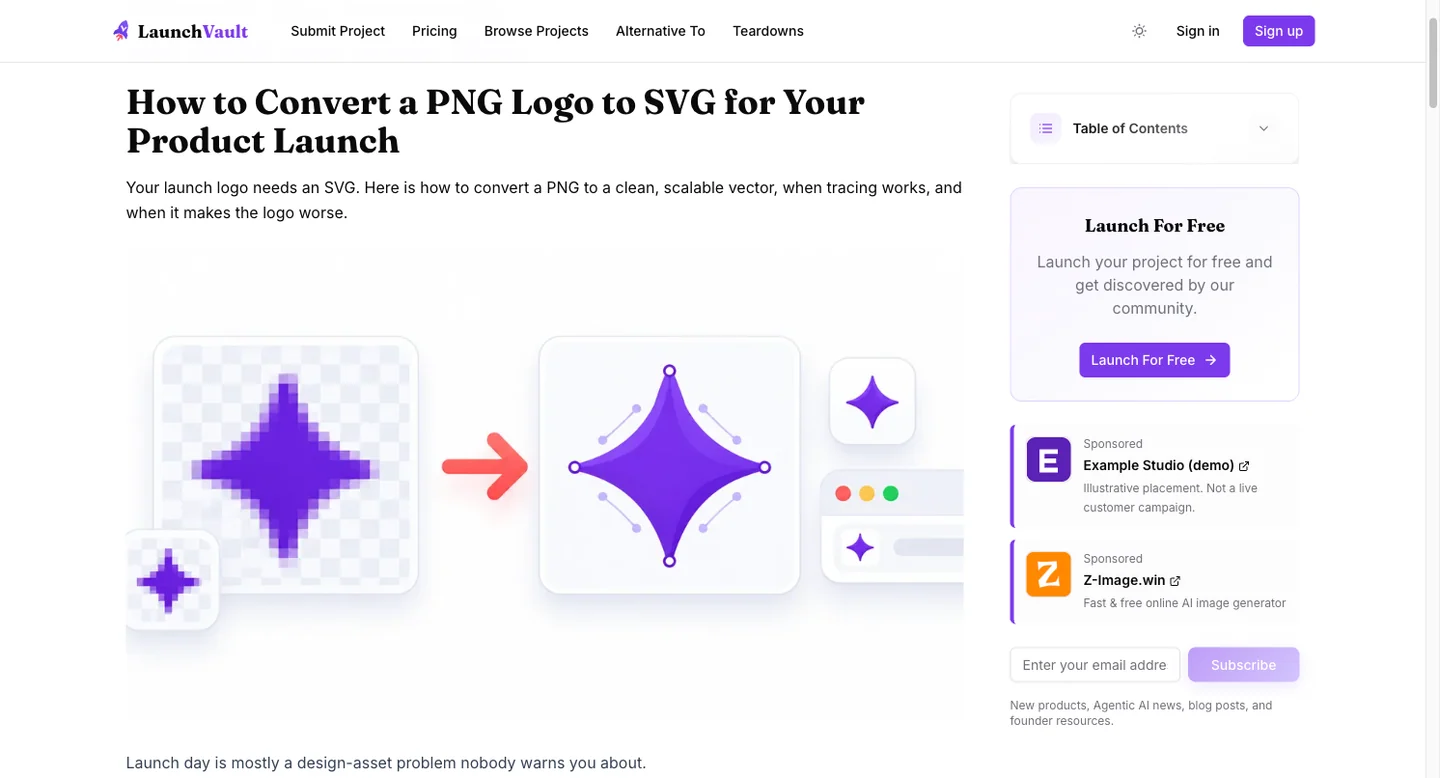 Blog article placement. A sponsored card is separate from the editorial article.
6. Indie tool details
Individual Indie Tools pages have desktop sidebar and mobile content placements. These are tool detail pages, not a promise to appear on every directory index or category page.
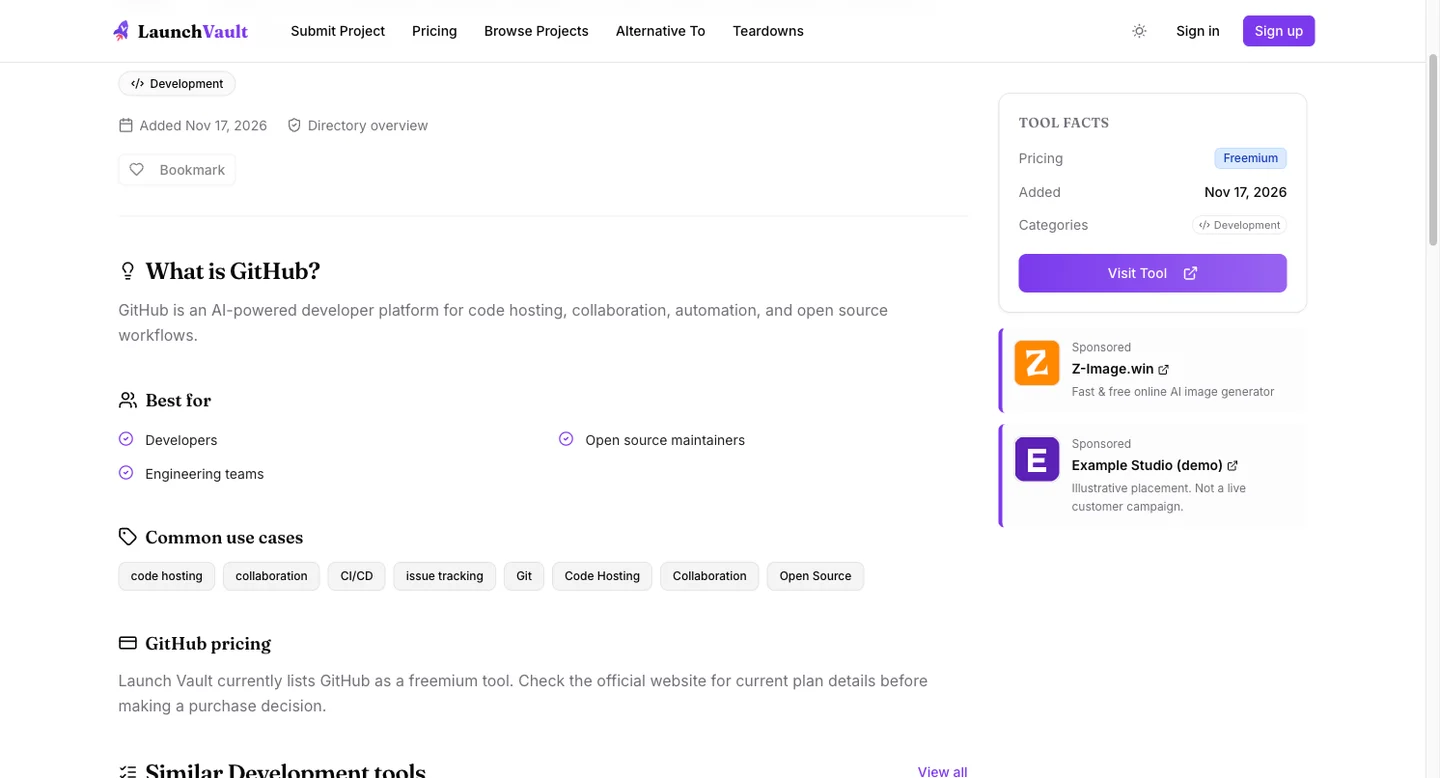 Indie tool detail placement, using a demonstration sponsor.
7. Product teardowns
Teardown articles use a floating sponsor strip at the bottom of the screen. Cards sit side by side and wrap as available space changes. On a smaller screen or with several sponsors, the card area can scroll internally. A reader can use Hide to dismiss the strip for the current page.
All active cards are included, but a card outside the visible portion of the strip has not earned an impression simply by being loaded. The same visibility rule applies here as to the other placements.
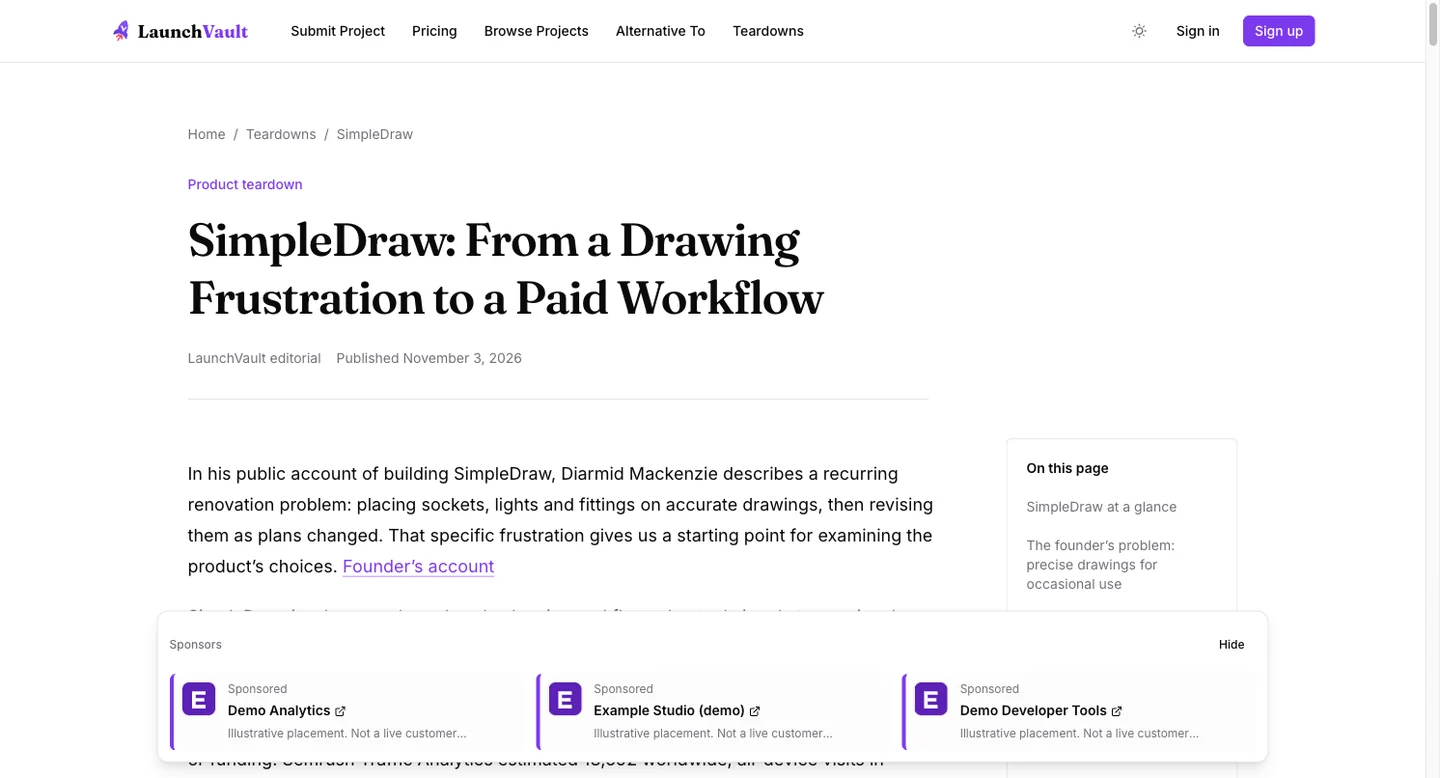 Teardown placement. This demonstration shows how multiple cards share the floating strip.
Booking a campaign
- Sign in to your LaunchVault account. The campaign and its report belong to this account. Use the same account when returning to your dashboard.
- Open the sponsorship form. The buttons in this guide use the same form as the homepage and Pricing page.
- Upload a product logo. Use PNG, JPEG, or WebP, no larger than 1 MB. Wait for the upload confirmation.
- Add your product name, tagline, and destination URL. Names can be up to 60 characters; the single-line tagline can be up to 100. Use a complete HTTP or HTTPS landing-page URL.
- Continue to checkout. The service checks your details and checkout readiness, then opens the Waffo payment flow.
- Return to your campaign in the dashboard. The server verifies the payment result. The seven-day period starts once payment is confirmed and the card is live, not merely because a success screen opened.
If you leave checkout or lose the connection, check the existing order in your dashboard before purchasing again. You can inspect its payment status and, when offered, continue the existing payment. Pending or unconfirmed payment is not the same as an active campaign.
If checkout is temporarily unavailable, the form shows an error when you continue. Check your dashboard before trying again so you can reuse an existing order.
Book Boost Sponsor
$29 for seven days. Add your logo, tagline and destination link.
Reading your campaign statistics
You can return to your campaign statistics from your account, without waiting for the final PDF. Use the same LaunchVault account you used to purchase the campaign.
Find your campaign in the Dashboard
- Open your Dashboard.
- Find Your Boost Sponsor Orders, below My Projects and above Your Feature Badge.
- Identify the campaign by its product name, dates, and status. If you have sponsored the same product more than once, choose the campaign period you want to inspect.
- Select its row or View details → to open the campaign's statistics page.
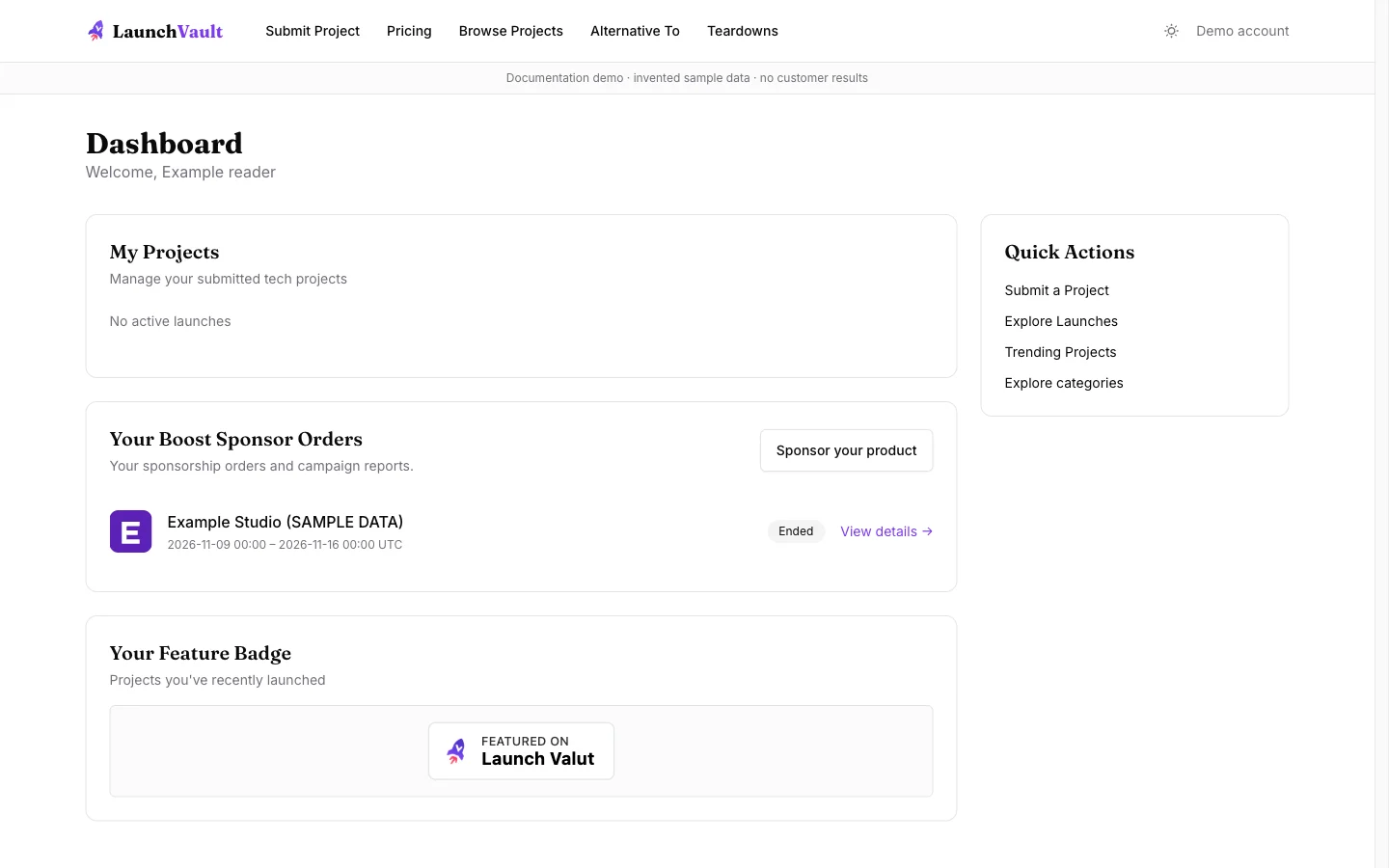
Open the campaign statistics
The detail page shows your product card information, destination link, campaign status, and actual start and end times. At the top are Viewable impressions, Clicks, and CTR. Below them, Daily performance groups activity by UTC date, and Page breakdown shows which covered page types recorded it.
While a campaign is active, open or refresh this page to see the latest recorded figures. Before it goes live, the page explains that statistics will appear after the campaign starts. After it ends and the five-minute settlement window finishes, Download Report (PDF) becomes available on the same page.
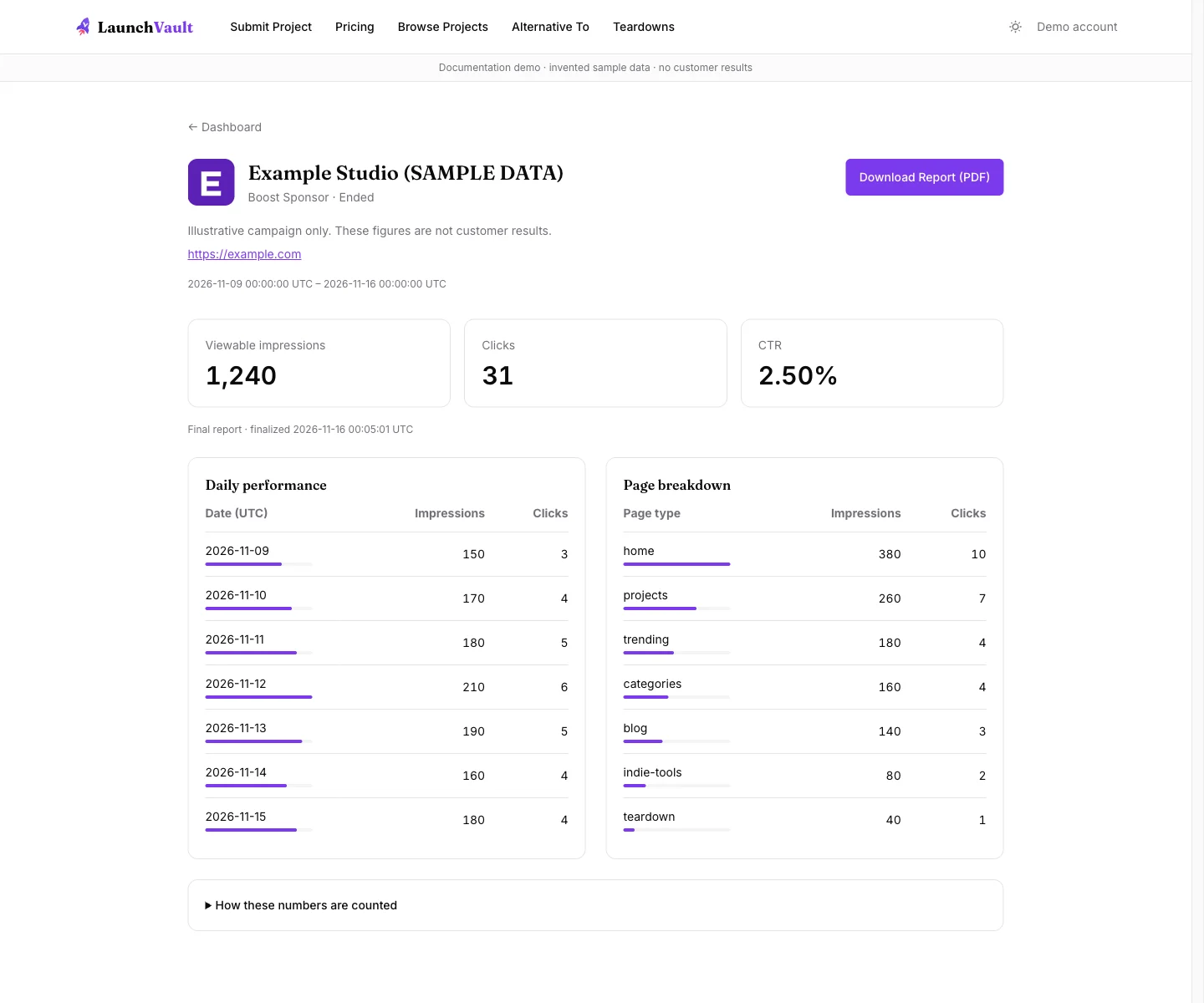
Both screenshots use Example Studio (SAMPLE DATA) to demonstrate the interface. They do not show a real customer's campaign or a forecast of your results.
Viewable impressions
An impression requires at least 50% of your card to remain visible for one continuous second in a foreground browser tab. Each card counts once per page visit.
A card loaded below the viewport does not count. A background tab does not satisfy the foreground rule. Several cards on the same page each need to meet the visibility threshold themselves. Reloading or returning on a new page visit can create another eligible impression; this is not a count of unique people.
Clicks and click-through rate
Clicks count individual interactions with the sponsored card. Duplicate delivery of the same event is ignored, while a separate click can count again. A quick click before the one-second visibility threshold can count as a click without creating an impression.
CTR = clicks ÷ viewable impressions × 100%. For example, 31 clicks from 1,240 viewable impressions gives a CTR of 2.50%. Because repeated clicks and quick clicks are possible, CTR can exceed 100%. When there are no impressions, the report shows No data for CTR.
Daily performance and page breakdown
The detail page includes two tables:
- Daily performance: impressions and clicks grouped by UTC calendar date. A seven-day campaign starting partway through a UTC day may span eight calendar-date rows.
- Page breakdown: impressions and clicks attributed to homepage, product details, Trending, category details, blog articles, indie tool details, and teardowns.
These are campaign events recorded by LaunchVault, rather than the website's total traffic or an estimate from an external traffic checker. The report does not show unique visitors, buyer identities, referring websites, countries, or conversions on your own site. If you need to measure downstream sign-ups or sales, use your landing-page analytics and, if appropriate, tracking parameters in the destination URL.
A sample final report
The example below is for Example Studio, with a sample campaign from November 9 to November 16, 2026, in UTC. All numbers are invented to explain the report. They are not previous customer results, expected delivery, or a minimum included in the price.
| Example total | Sample value |
|---|---|
| Viewable impressions | 1,240 |
| Clicks | 31 |
| CTR | 2.50% |
| Page type | Sample impressions | Sample clicks |
|---|---|---|
| Homepage | 380 | 10 |
| Product details | 260 | 7 |
| Trending | 180 | 4 |
| Category details | 160 | 4 |
| Blog articles | 140 | 3 |
| Indie tool details | 80 | 2 |
| Teardowns | 40 | 1 |
| Total | 1,240 | 31 |
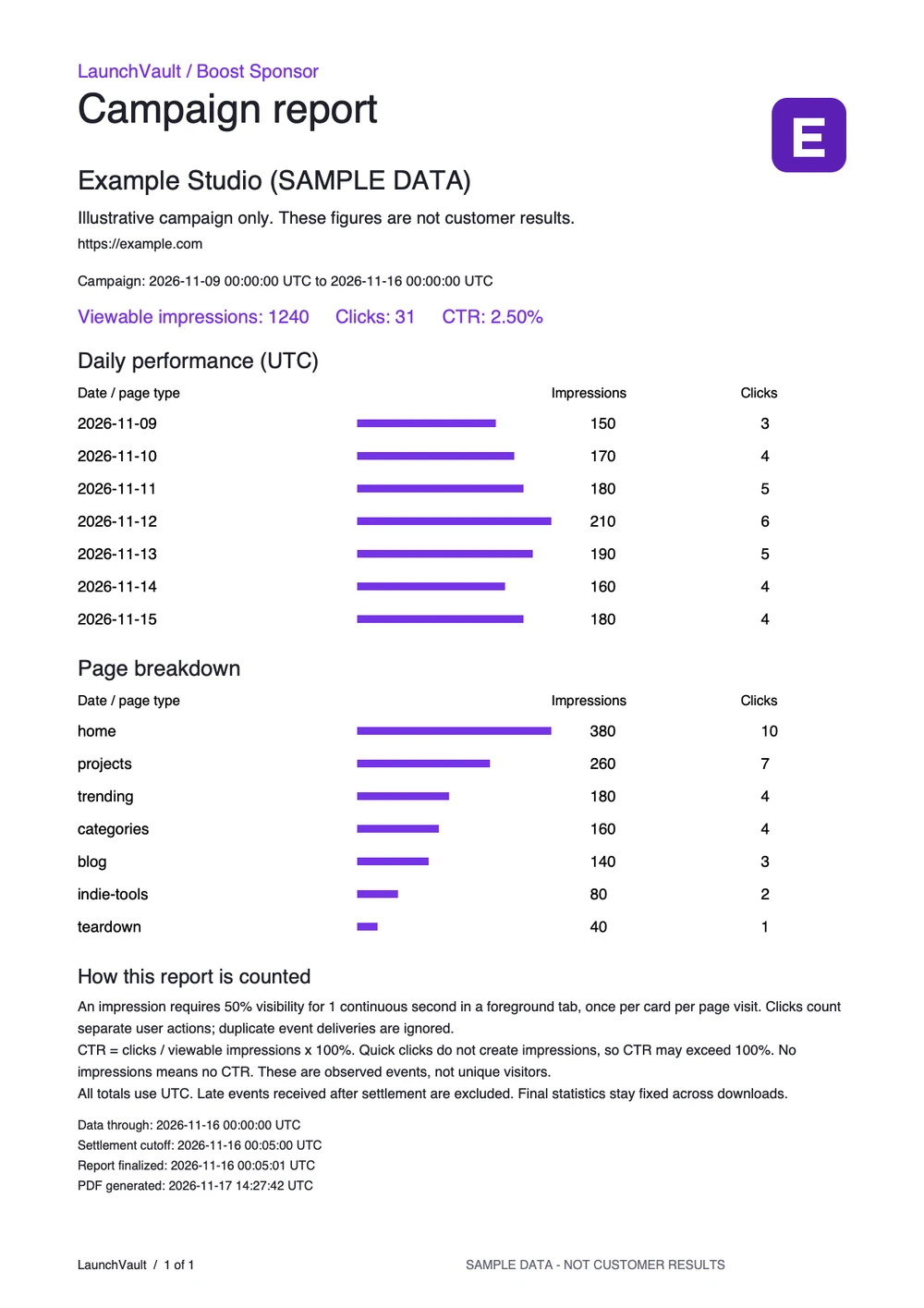 Sample PDF generated with the same report renderer used for campaign downloads. Invented data only.
Download the sample campaign report (PDF).
The PDF includes:
- Product name, logo, tagline, and destination URL.
- The actual campaign interval in UTC.
- Total viewable impressions, clicks, and CTR.
- Daily impressions and clicks, with visual bars.
- Impressions and clicks by covered page type.
- The visibility, click-counting, and CTR definitions.
- Data cutoff, settlement cutoff, report finalization time, and PDF generation time.
When the final PDF is available
After the campaign ends, there is a five-minute settlement window for eligible late-arriving events. Refresh the campaign detail page after that window to download the PDF. The settled totals are then fixed: opening the historical report or downloading it again does not recalculate its statistics.
The PDF generation timestamp may differ between downloads, while the campaign details and settled statistics remain the same. Events received after the settlement cutoff do not change the final result.
Before you book
Choose a landing page that gives visitors a clear next step, prepare a legible square logo, and write a tagline that explains what the product does. Those details become the card readers actually see. Check the destination URL carefully before proceeding to checkout.
For product-launch benefits, compare the Launch plans on Pricing. For the seven-day sponsor placement described here, use the button below.
Book Boost Sponsor
$29 for seven days. Add your logo, tagline and destination link.